Capture Request in Chrome
Verify proxy setup, capture HTTPS traffic, and inspect sessions in HTTPeep using Chrome.
This guide walks you through the complete flow in Chrome: enable the proxy, make a request, view the session details in HTTPeep, and confirm that HTTPS capture is working. The whole process usually takes 3–5 minutes.
Please complete Installation first. If the Root CA is not installed and trusted, HTTPS requests may not be decrypted correctly.
1. Start HTTPeep and Enable the System Proxy
Launch the HTTPeep desktop app and confirm the status bar at the top is active.
Click the HTTPeep Logo icon in the top toolbar. Once enabled, the logo button turns blue, indicating the proxy is active (enabled by default). The default listen address is 127.0.0.1:8080.

Keep HTTPeep running. Chrome traffic will now automatically route through HTTPeep.
2. Trigger an Observable Request in Chrome
We recommend visiting a stable page such as https://example.com so the request is easy to identify.
Enter https://example.com in the address bar and press Enter. Wait for the page to finish loading.
Normally, you will see a new request appear in the session list within 1–2 seconds.
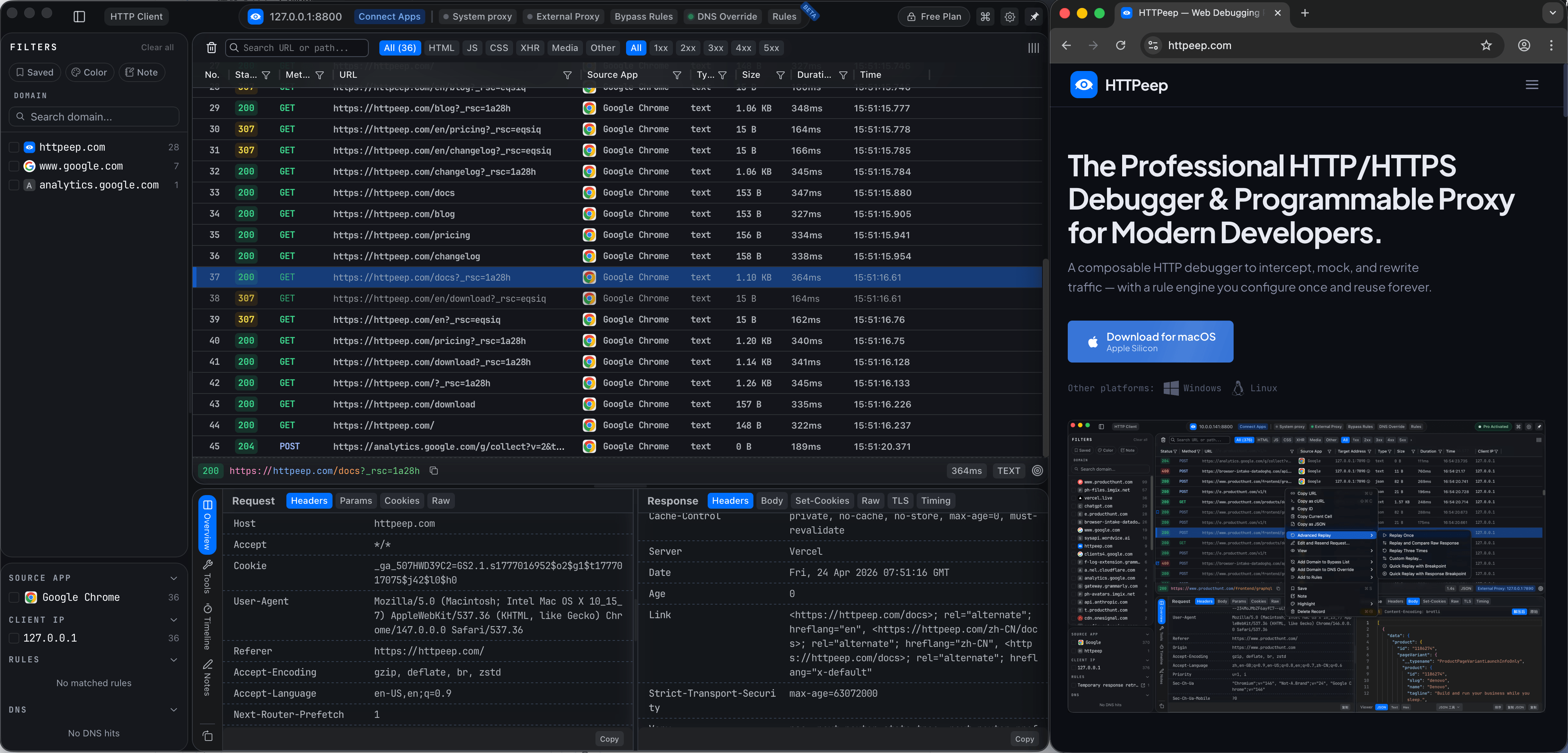
Enter example.com in the filter box to quickly find the request you just made.
3. Inspect Request and Response Details
After clicking any session, focus on the following panels:
- Request: method, URL, headers, body
- Response: status code, headers, body
- Timing: DNS, connect, TLS, and transfer duration
If you can see the plaintext headers and body of an HTTPS request, the certificate trust and decryption chain are working correctly.
4. Quick Troubleshooting
| Symptom | Common Cause | Solution |
|---|---|---|
| No requests visible | Proxy not started | Return to HTTPeep and confirm Start is enabled |
| Only HTTP, no HTTPS | Root CA not trusted | Re-run the certificate installation process |
| Chrome works but no sessions | Browser bypassing system proxy or extension interference | Disable proxy-related extensions and restart Chrome |
| Certificate errors | Certificate not properly imported into browser trust chain | Re-import the CA following the installation docs |